

Organising an event
Entrants, start times and unlocking
For the organiser - uploading entrants from a spreadsheet, minors and parental consent, entry statuses, the starting order generator (FIM or custom), the encrypted package that opens at GPS time and the preview of what the rider sees.
Riders do not download files and do not receive roadbooks by email: they sign in to the app with their account and find the event under My events. For this to happen two things are needed: an accepted entry and a start time in the stage.
Uploading the entrants
In the Entrants tab press Upload list (CSV or paste). You can choose a CSV file or paste the rows copied from a spreadsheet. One row per entrant, with:
| Column | Example | Notes |
|---|---|---|
| mark@example.com | the one the rider uses to sign in to the app; required | |
| name | Mark Smith | as it will appear in the results |
| number | 7 | race number |
| class | Bike | if it does not exist and the option is ticked, the class is created |
| navigation | RoadBook or GPX | decides what the rider receives and their category in the results |
| team, status, language | optional | |
| minorenne, consenso_genitori (minor, parental consent) | yes / no | optional: a minor takes part only with the parental consent you have collected; without consent the entry stays pending and is not activated |
With a header row the column order is free; the separator (comma, semicolon, tab) is detected automatically, and the headers can be written in Italian, English, French, Spanish or German.
Press Preview: each row shows how it will be imported, with errors in red (for example an invalid email) and warnings (a new class, an invitation to send). The import is all or nothing: if there is an error, you correct it and run the preview again. Uploading the list again updates the entrants already there, without duplicates.
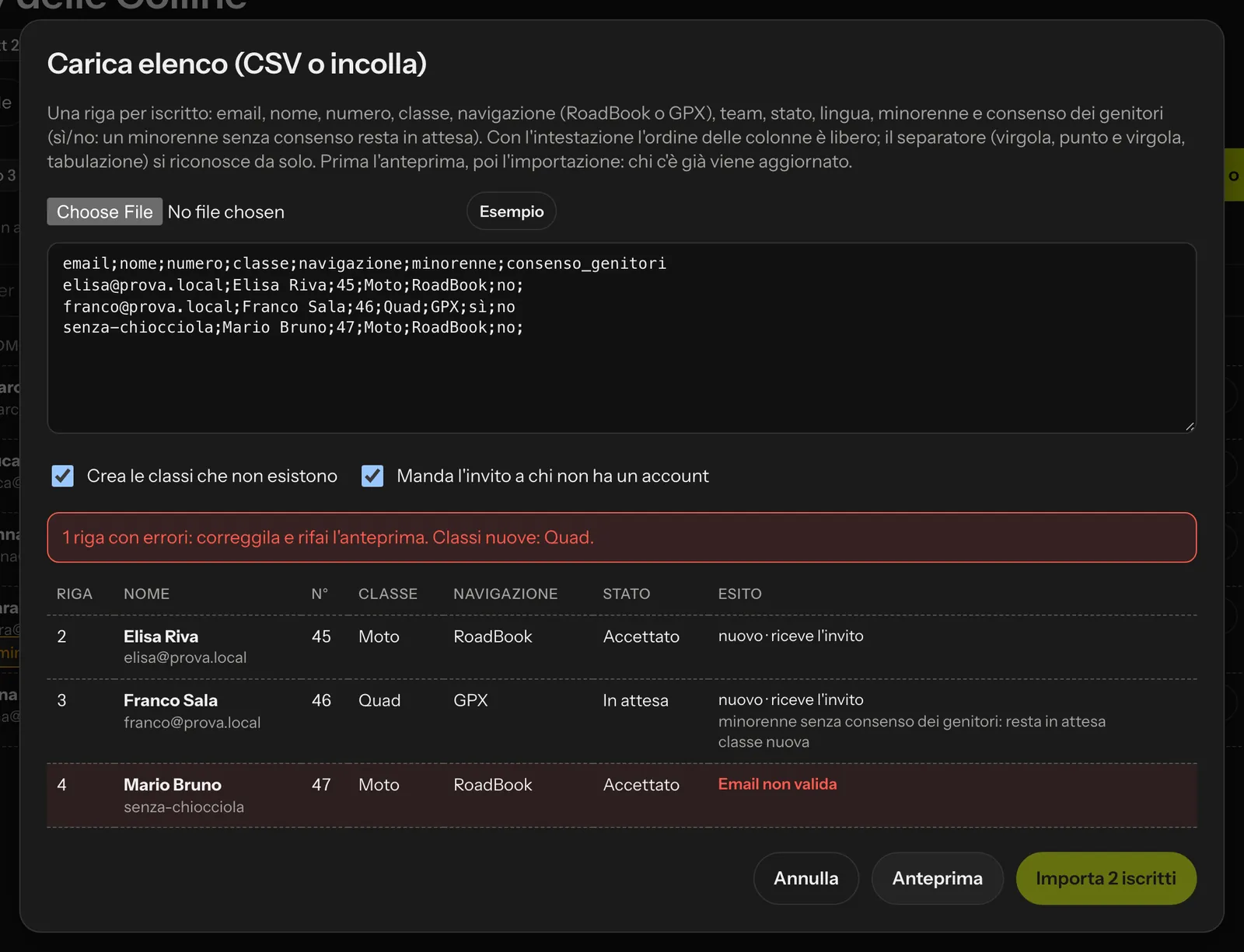 The preview flags the row to correct before importing.
With Send the invitation to those without an account, people who are not registered yet receive an email in the event language: they sign up with that address, confirm the email and their account is active straight away, without waiting for an administrator's approval. People who already have an account find the event in the app at the next refresh. You can also add an entrant by hand, with + Entrant.
Minors
A RoadBookAI account is for adults only. A minor holding a sporting licence takes part in an event only if you enter them, with the consent of the holders of parental responsibility, which you collect. In the list you use the columns minorenne and consenso_genitori (yes/no); in the entrant's form you choose Minor: No, Yes, parental consent collected by the organiser or Yes, parental consent not yet collected.
As long as consent is missing the entry stays pending and is not activated: no invitation, the event does not appear in the app or in the Studio, and the rider is not included in the calculation. In the list a label marks minors, in orange those without consent.
Entry statuses
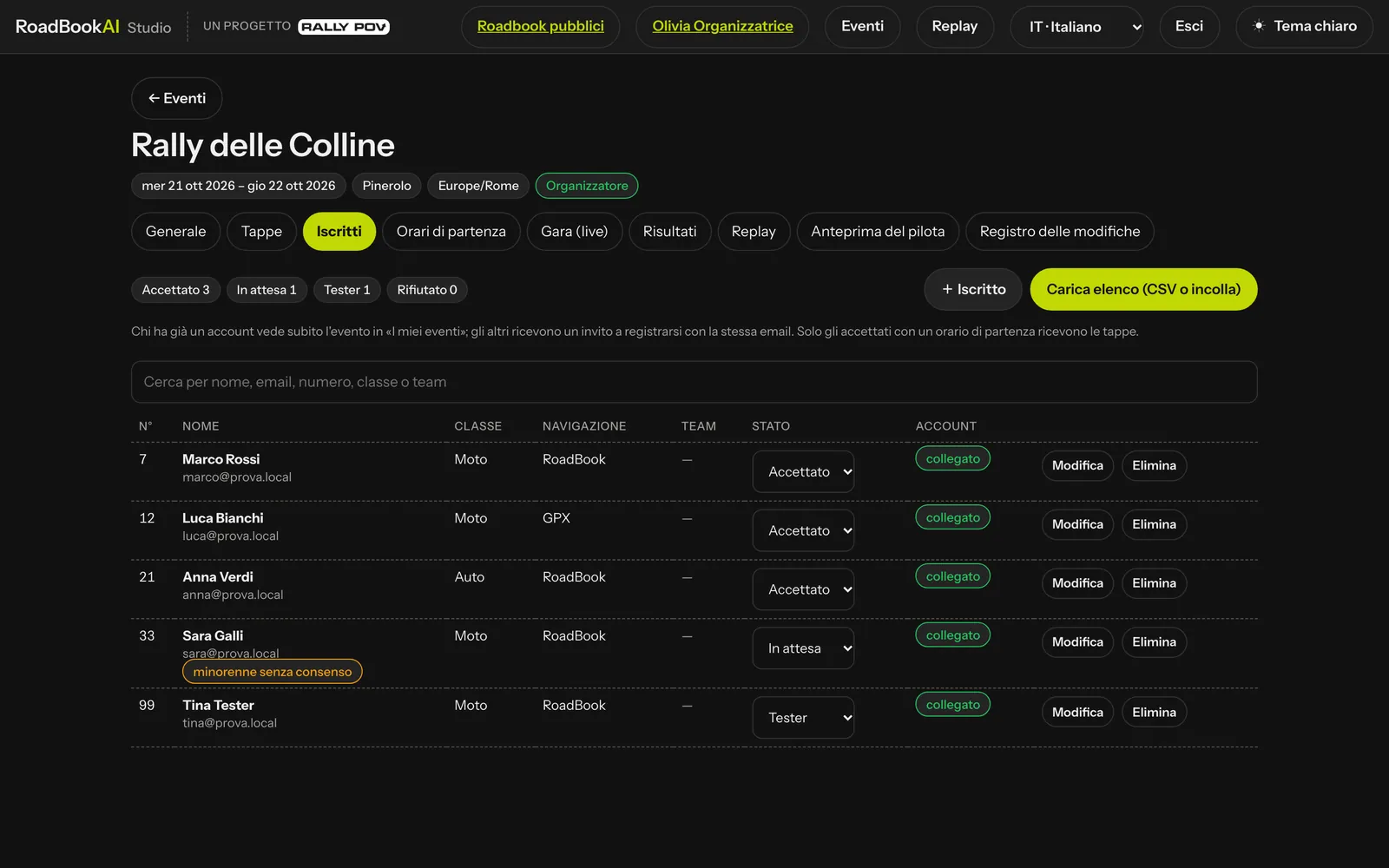 The Account column tells you whether the email is already linked to a RoadBookAI account.
| Status | What it means |
|---|---|
| Pending | entry received, not confirmed yet: the rider sees the event but the stages stay closed |
| Accepted | takes part: receives the stages they have a start time for |
| Rejected | does not take part |
| Tester | tries the stages before the race (for example an opening rider or someone checking the roadbook) and never appears in the results or on the public pages |
Start times
In the Start times tab choose the stage: the list of riders shows each one's start time, which you can change by hand, and the Stage now column tells you what each rider sees at this moment (locked, downloadable, open).
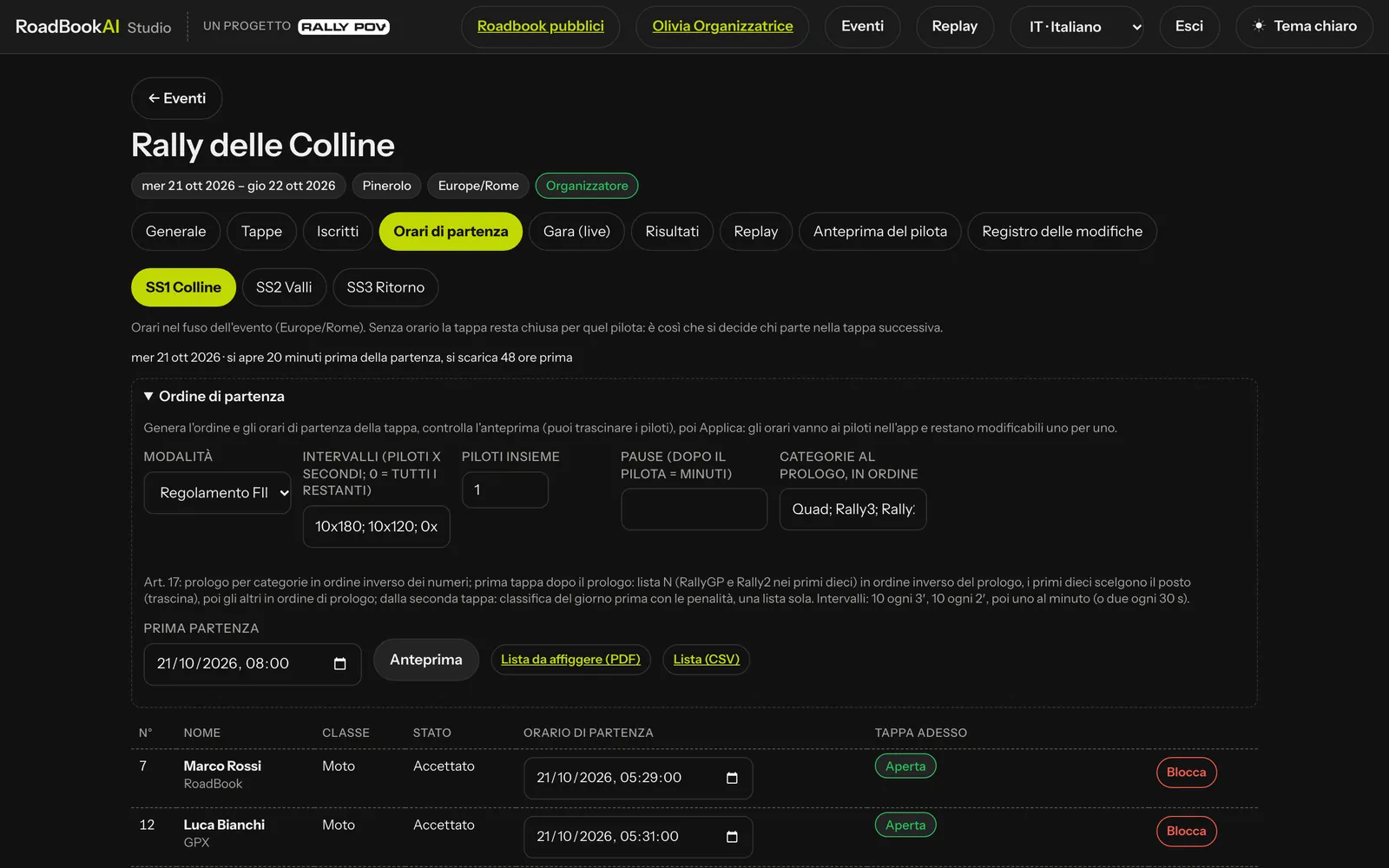 Start times: the order generator at the top, the times rider by rider below.
The starting order generator
The Starting order panel calculates the order and the start times of the stage. There are two modes:
- FIM W2RC 2027 regulations (Art. 17): the first ten riders on the list start every 3 minutes, the next ten every 2, then one a minute. At the prologue riders start by category (Quad, Rally3, Rally2, RallyGP, editable) in reverse race-number order; at the first stage after the prologue list N (RallyGP and Rally2 in the top ten) takes the first places in reverse prologue order, then the others in prologue order; from the second stage the previous day's results for the sections apply, penalties included. The top ten choose their place live: you drag the rows in the preview.
- Custom: first start, intervals in bands ("10x180; 0x60": the first ten every 180 s, then everyone every 60 s), riders together (for example two every 30 seconds), scheduled breaks ("30=10": 10 minutes after the thirtieth rider), order by race number, from the previous stage results, from the overall results, random (with a seed that stays in the log and recreates the same list) or by hand by dragging; classes one after the other with a break; riders who retired, did not start or were disqualified in the previous stage are excluded.
Preview shows place, number, name, class, time and the reason for each place; when you drag a rider the times are recalculated. Apply the times writes them: each rider receives the notice and their time in the app, the packages are regenerated and everything stays in the log (mode, order, seed). Start list to post (PDF) and List (CSV) give you the start list to print. The generator's values can also be saved in the stage rules and in the profiles.
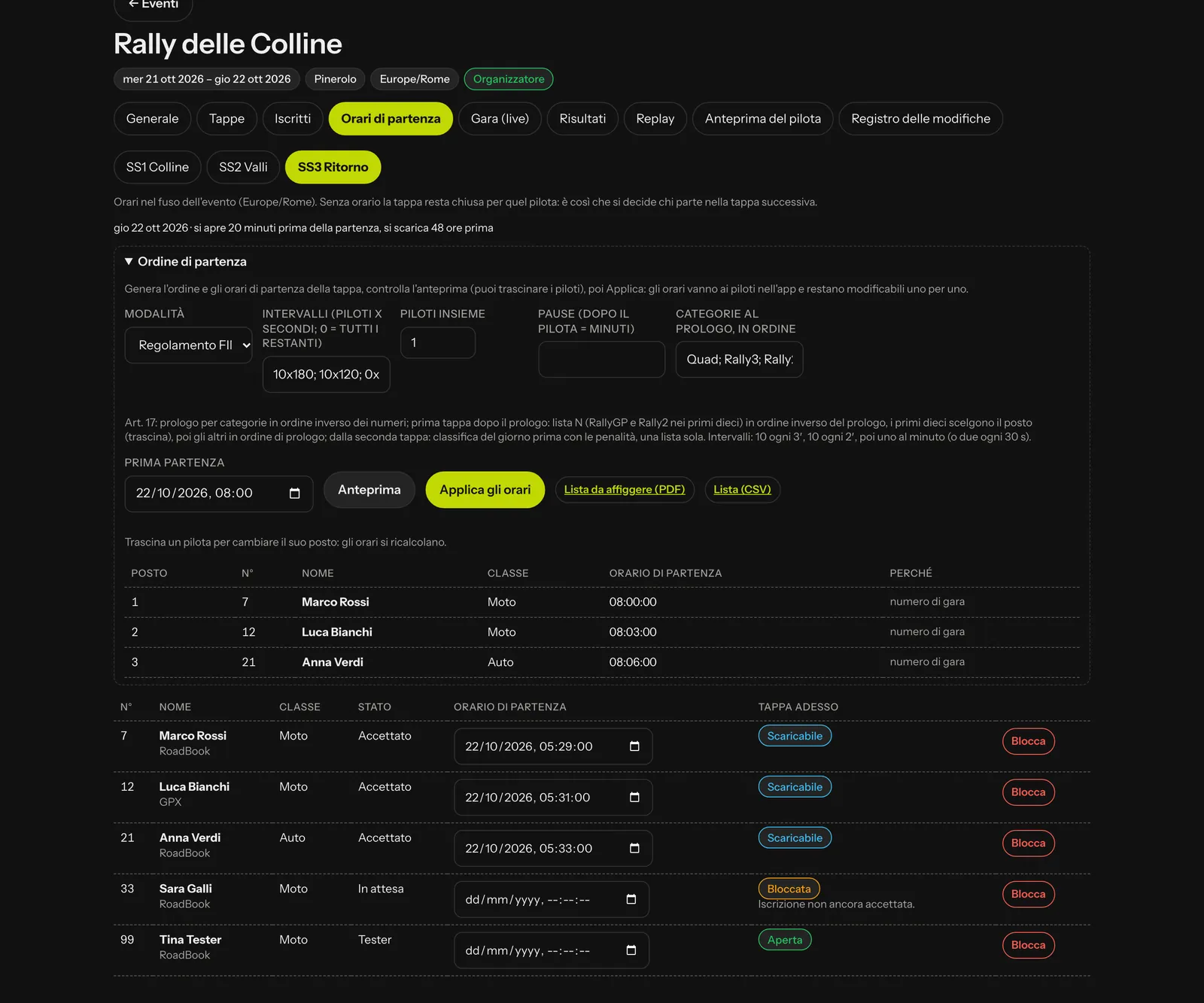 The generator in FIM mode: preview with the place and the reason, then Apply the times.
The start time is also the key to the stage: without a start time the stage stays closed. This is how the clerk of the course decides who starts the next stage. The Block button closes the stage to a single rider (for example someone who has retired or been excluded): their package is removed from the phone at the next sync.
The encrypted package and unlocking
For each stage and each rider the service prepares an encrypted package with the roadbook, the track, the stage rules, the settings of their class and the times. Each package has its own key (per stage, rider and version): a file passed on to someone else is of no use.
| Moment | Default | What happens on the phone |
|---|---|---|
| Downloadable | 48 hours before the start | the package downloads by itself as soon as there is a network connection, but stays closed |
| Can be opened | 20 minutes before the rider's start | the Open the stage button lights up, even without a network connection |
| Removed | 12 hours after the end of the stage | package and key are deleted; the replay remains |
Opening uses the GPS time, not the phone's time: changing the clock does not open the stage earlier. That is why, before the start, the rider keeps the phone outdoors for a few seconds. The times can be changed per event and per stage (Own unlock times and order in the stage window).
GPX entrants also receive the stage's offline map, encrypted in the same way and opening at the same time; RoadBook riders get it only if you have chosen so for the event or for the stage.
Rider preview
The Rider preview tab shows, for one entrant and at a simulated time, exactly what they will see in the app: stages locked with the reason, downloadable, open or closed, with their times. It is the simplest way to check start times and unlocks the evening before, without a phone in your hand.
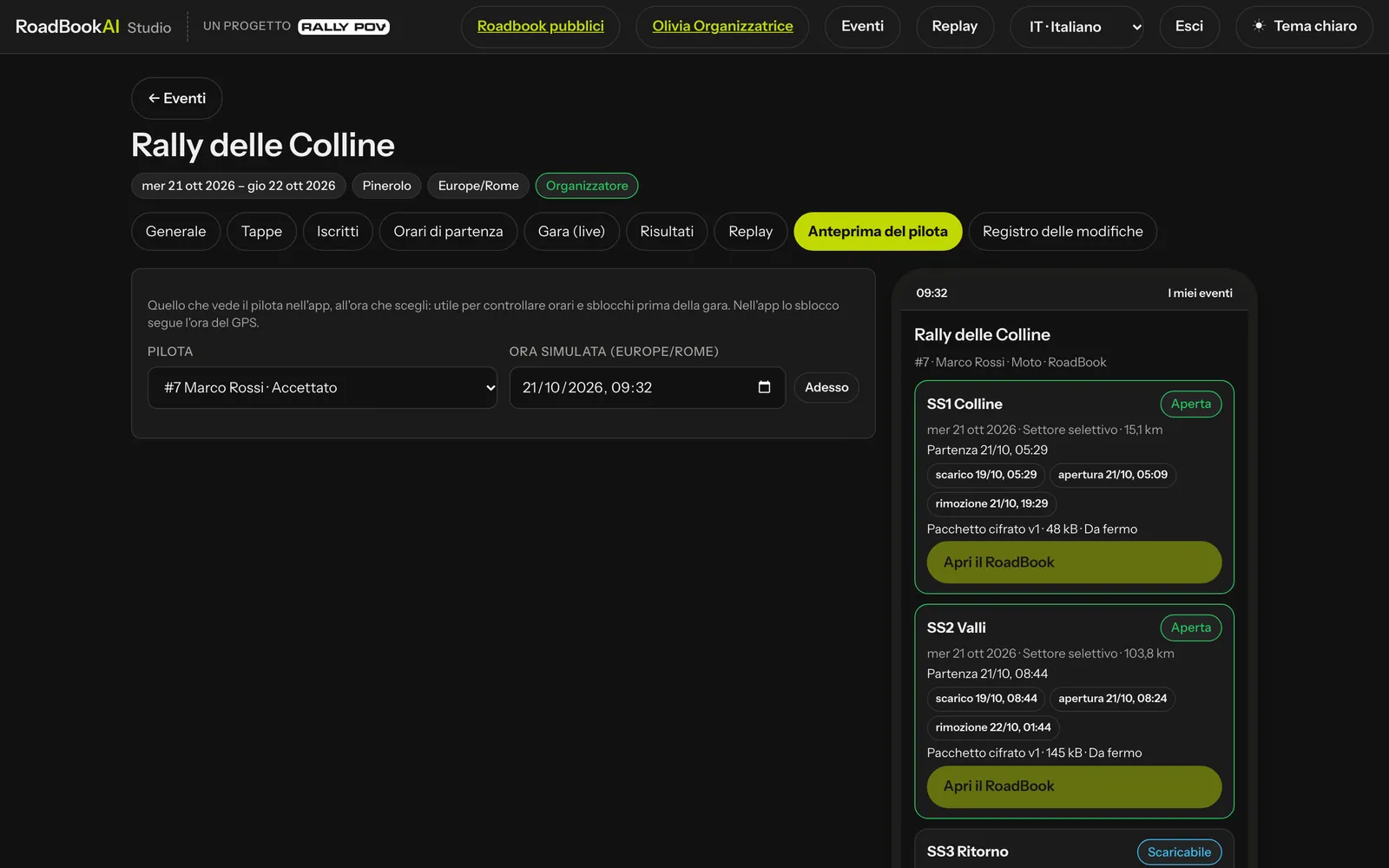 On the left you choose rider and time; on the right the screen of that rider's app.
What the rider sees
In the app, under My events, the rider finds the event with their number, class and type of navigation; for each stage the status and the countdown (downloadable in, opens in, start in). The chapter Racing with the app tells their side of the story.