

Create and review
Versions, comparison, MODIF and NEW NOTE
The draft saved with every action, versions that never change again, automatic MODIF and NEW NOTE and the note-by-note comparison.
A roadbook lives in two forms:
- the draft, which you work on: every action (confirm, reject, edit, drawing, waypoint) is saved immediately;
- the versions (v1, v2, v3…): fixed snapshots that never change again. v1 is created by the generation.
Saving a version
Press Save version in the editor bar, write a message (for example "after recce 20/10") and confirm. Before you do, the window tells you how many notes have been changed, added or removed compared with the previous version.
When you save, automatically:
- notes changed since the previous version receive MODIF;
- new notes receive NEW NOTE.
This is the convention of race roadbooks: a rider who has already studied v1 can see straight away what to look at again. In the draft, the RoadBook shows a dashed preview of the labels that will arrive with the next version.
MODIF and NEW NOTE appear in the RoadBook, in the PDF, in the RN2 and in the file for the app.
The list of versions
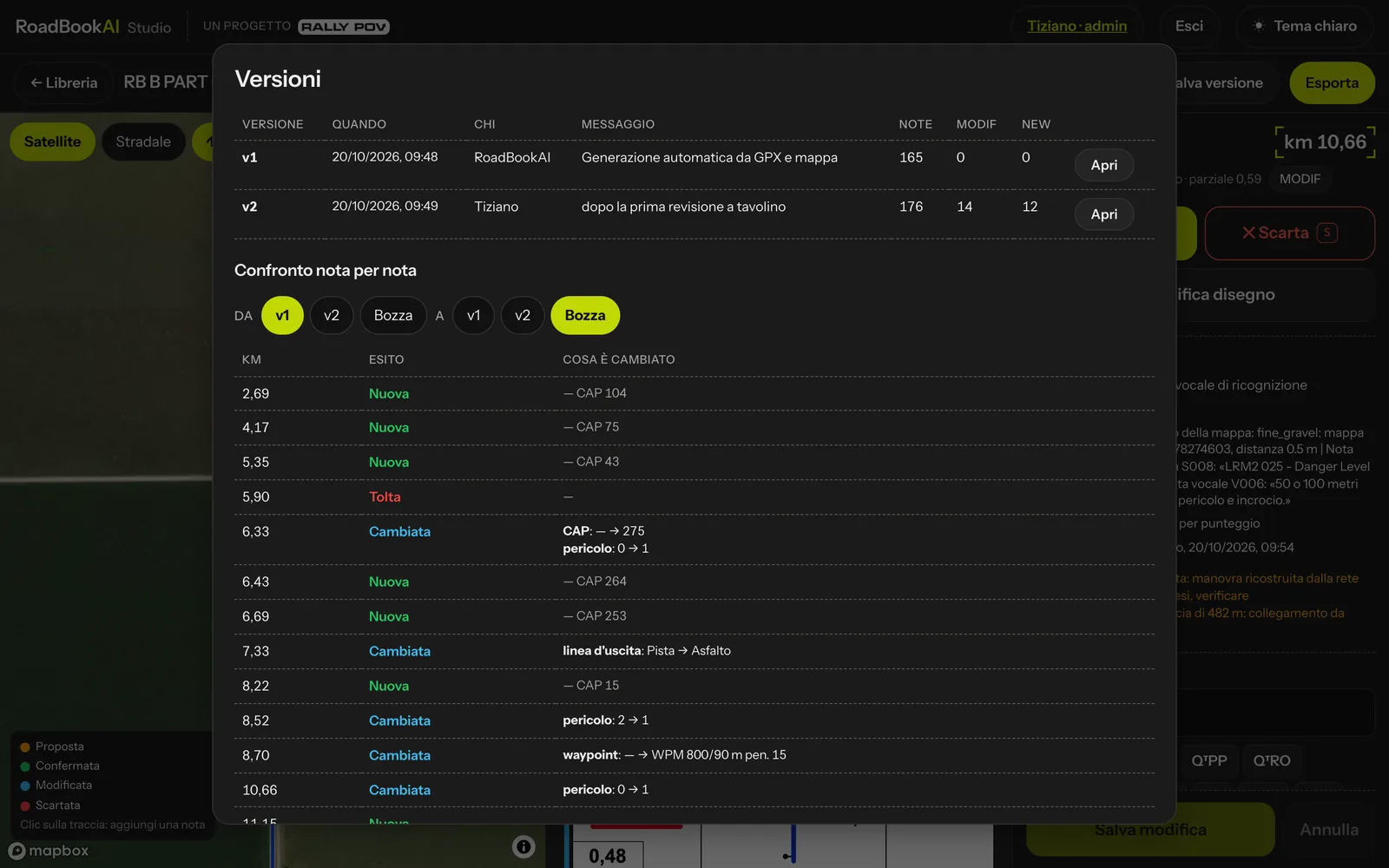 Versions: list and note-by-note comparison.
Versions opens the list: number, when, who, message, number of notes, how many MODIF and how many NEW. Open takes you to a saved version, which is shown view only: you can consult it and export it, but not change it. To get back to work, use Open the draft.
The note-by-note comparison
Below the list, choose From and to (a version or the draft). For each note that differs you see the km and the outcome:
- New or Removed, with the annotations and the CAP;
- Changed, field by field, with the value before and after: km, annotations, free text, ET, CAP, danger, entry and exit lines, road surface, roundabout, speed limit, waypoint, and "hand-drawn" when you have redrawn the note.
Exporting a version
Export starts from the version that is open: from the draft you export the work in progress, from a saved version you export exactly that version. See Export.