

Start here
Account and security
Signing up, signing in with two-step verification, recovery codes, sessions and connected devices, roles, your data and sharing roadbooks with your team.
Everyone has their own account, the same in the Studio and in the app: you sign in with email and password and, if you turn it on, with a code from your phone. The roadbooks you create are yours, and only the people you share them with can see them.
Signing up
- Open Sign up: first name and surname, email, a password of at least 12 characters. A phrase of four or more words is better than a single word with symbols; passwords that are too common (even with numbers added) are rejected.
- You receive an email with a link: open it within 48 hours and press Confirm address.
- An administrator approves the account and you receive an email. From then on you can sign in.
If an organiser has entered you in an event, the invitation arrives by email: you sign up with the same address, confirm the email and the account is active straight away, without waiting for approval.
Two-step verification
With two-step verification, to sign in you need your password and a 6-digit code that changes every 30 seconds, generated by an authenticator app on your phone (Google Authenticator, Microsoft Authenticator, 1Password, Aegis…). RoadBookAI suggests it the first time you sign in; for administrators it is mandatory.
To turn it on: Account › Security › Turn on two-step verification, enter your password, scan the QR code with the app (or copy the key by hand) and enter the first code. You then receive 10 recovery codes: save them (in a password manager or printed out), as you will need them if you lose your phone. Each one works once and you will not see them again; if you are running low, generate new ones from the same page.
When you sign in, after email and password, enter the code from the app. No phone to hand: Use a recovery code. If you have lost both your phone and your codes, the administrator can reset the verification after checking your identity.
Forgotten password
From Forgotten password you receive a link valid for 1 hour, which works only once. Once you have chosen the new password, all open sessions are closed. Two-step verification stays on: the new password alone is not enough to sign in.
Sessions and sign-in log
In Account › Sessions you can see the browsers you have signed in from (IP, last used) and close them one by one or all together. A session expires after 7 days without use and in any case after 30.
Below, Connected devices lists the phones and tablets signed in with the RoadBookAI app: the connection lasts 180 days and renews itself when you use the app. If you do not recognise a device, or you have lost your phone, press Disconnect: the app immediately stops receiving your account's data (roadbooks already downloaded stay on that phone, race stage ones do not). Changing your password, blocking the account or changing two-step verification disconnects all devices.
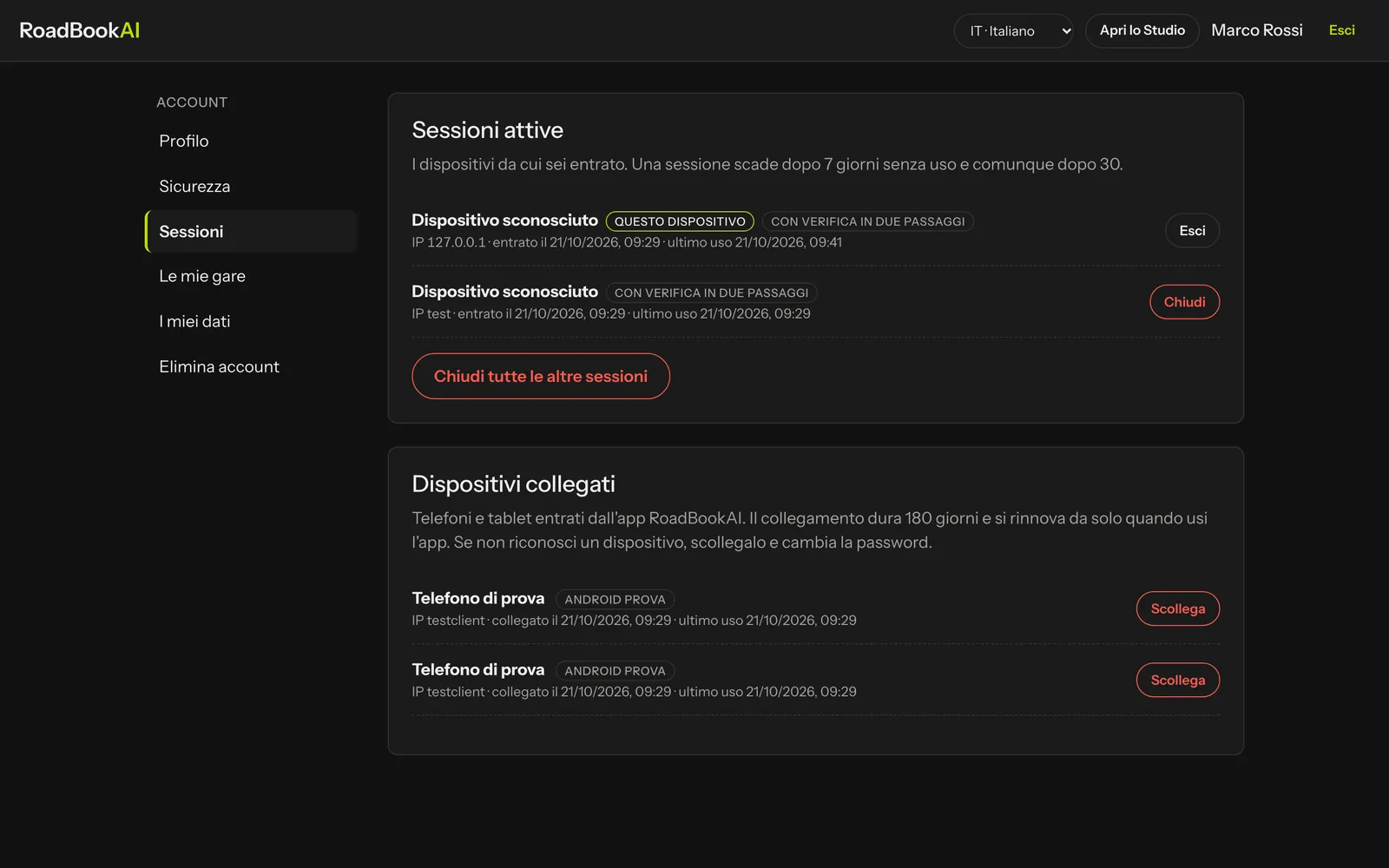 Browser sessions and app devices. In Account › Security you will find the log of recent sign-ins and changes: if you see something you did not do, change your password and close the other sessions.
To protect you: after 5 wrong passwords in 15 minutes, access to your account is suspended for 15 minutes and you receive an email; you also receive an email when your password or two-step verification changes, when a recovery code is used and when someone enters the wrong code several times after the correct password.
Sharing a roadbook with your team
In the library, on the card of one of your roadbooks, press Share and enter the email of a person who already has an active account:
- View: they can open the roadbook, look at it and export it, without changing it (the Studio shows a "view only" banner);
- Edit: they can also review notes, draw, manage waypoints and recce and save versions. Their name appears on their decisions.
From the same window you can change the permission or remove access. Only the owner manages shares. Roadbooks shared with you appear in your library with the name of the person who shared them.
My races
In Account › My races you find the stages you have raced, with Open the replay and the PDF report when the organiser allows it (see Replay and tutor groups).
My data and deleting your account
In Account › My data you can download your personal data at any time (JSON: account, sessions, log, shares, connected devices, rides recorded by the app, training groups, comments, shared links, published roadbooks and reports) and all the roadbooks you own (ZIP with draft, versions, GPX track, map data and recce data).
In Account › Delete account you permanently delete your account and the roadbooks you own: you need your password, the verification code (if turned on) and the word DELETE. It cannot be undone: download your data first.
Roles
| Role | What it adds | Who gives it |
|---|---|---|
| User | Studio, app, public roadbooks, event entries, replays of your own rides | it is the starting role |
| Organiser | events, stages, entrants, rules, live, results and replays of their events, with their team | an administrator |
| Tutor | training groups, replays and comments on the students' rides | an administrator |
| Administrator | users, moderation of public roadbooks, jobs, regional maps, updates; two-step verification mandatory | another administrator |
In an event's team the organiser gives roles specific to the event: clerk of the course, timekeeper, event tutor, read only (see Events and stages). The administrator's pages are in Users and roles.