

The rider app
The cockpit
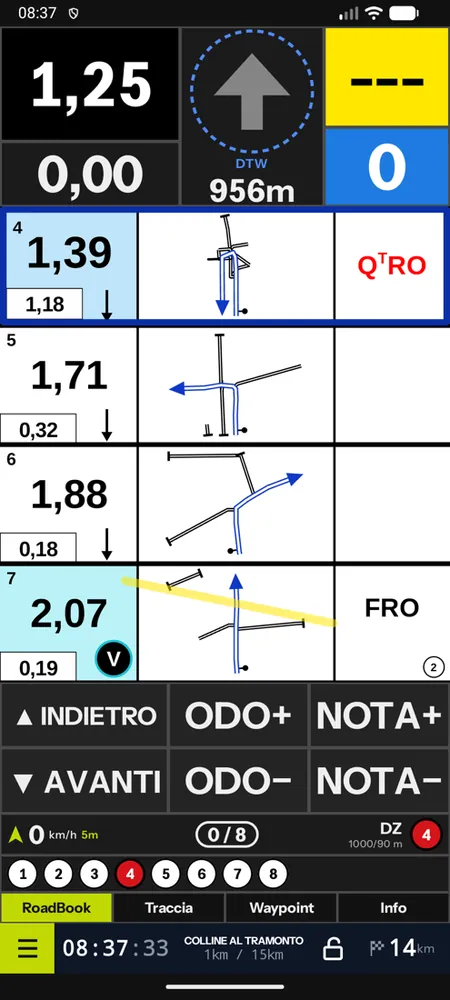
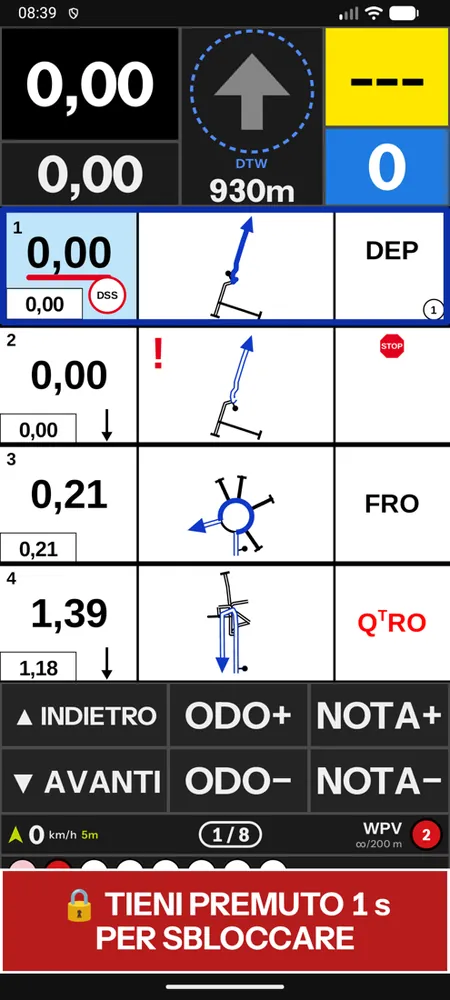
The cockpit's instruments and controls - instruments at the top and status block at the bottom, odometer and partial, waypoint arrow, RoadBook with large notes, automatic scrolling, panels and modes, waypoints, speed, race STOP, neutralisations, RoadBooks in PDF, remote and menu.
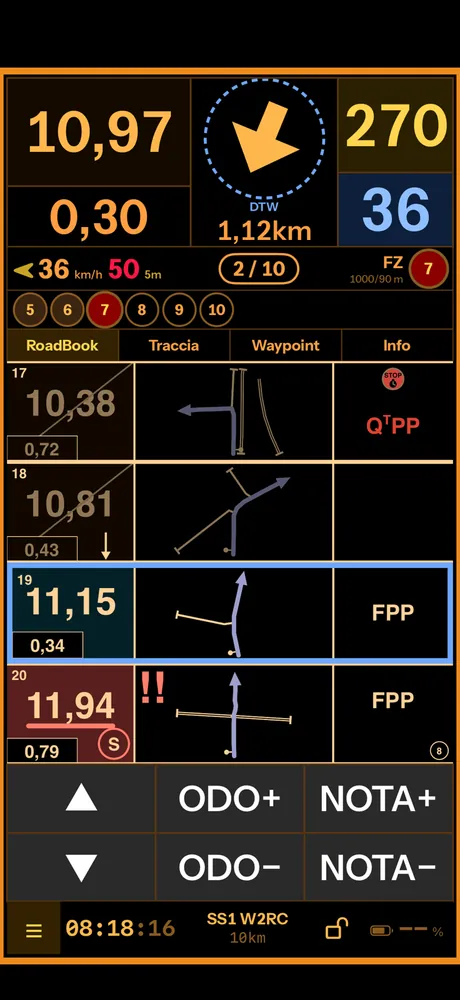
The cockpit is the screen you look at on the bike. Everything is designed to be read at a glance and operated with gloves on or with the remote.
In portrait, from the top:
- the instruments: total and partial, waypoint arrow or NOTE with the distance, CAP and speed;
- the RoadBook (or the map, or another panel), with the ODO and NOTE keys below;
- at the bottom the status block: the line with the speed and the limit in force, the validated WPs ("2 / 10") and the next waypoint with type, radii and number; the waypoint strip; the panel tabs; the bar with the menu, the time, the stage with its km and the lock.
That way only the numbers you need while riding stay at the top. With Instrument bar: Top (Settings › Display) the status line and the WP strip go back under the instruments. In landscape the instruments are on the left and the RoadBook on the right.
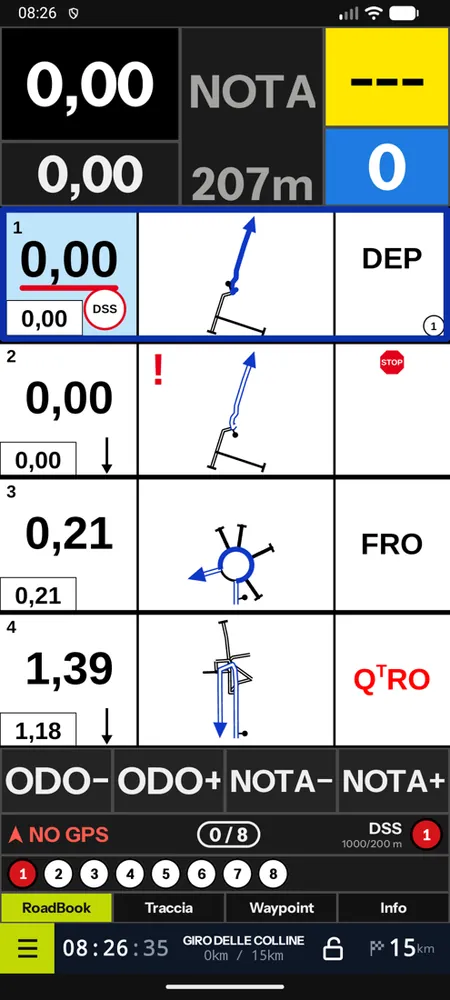
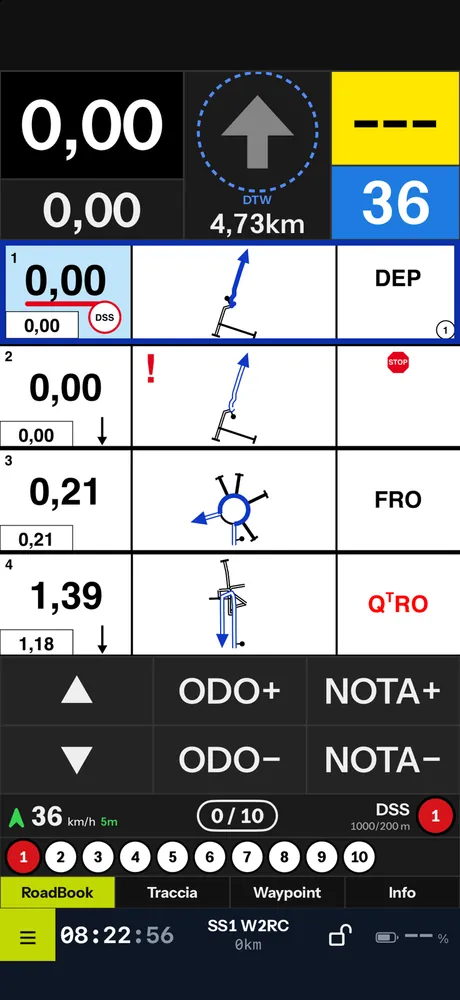
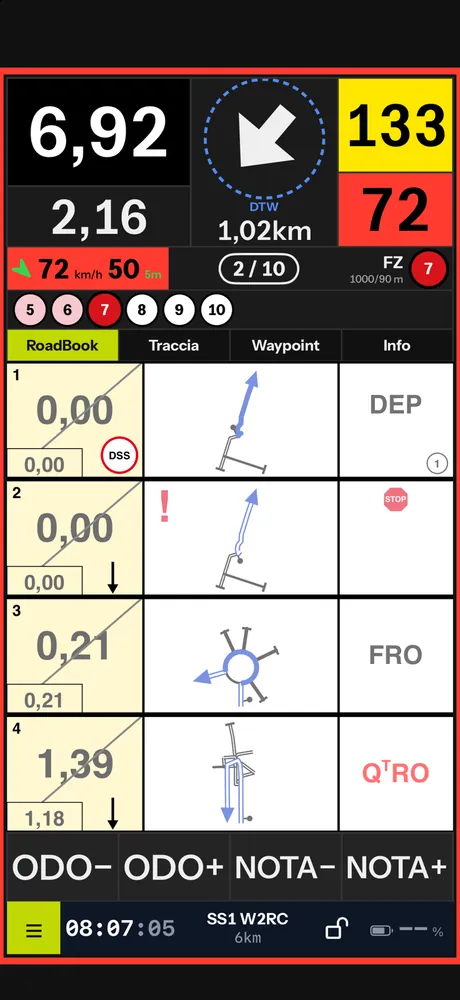
The instruments
| Instrument | What it shows |
|---|---|
| Total | the odometer in km, large; corrected with ODO− and ODO+ |
| Partial | the km since the last reset, below the total |
| Arrow and distance | with a waypoint open, the direction and the metres to go (DTW) inside a dashed circle; with no waypoint, the word NOTE and the distance to the next note |
| CAP | the direction of travel in degrees, on a yellow background; below it, on a blue background, the speed or the average CAP |
| Status line | speed with the limit in force in red, the WPs validated out of the total and the next waypoint (type, radii, number) |
| Waypoint strip | the numbered circles: validated, current, upcoming; without hidden WPs or missed ones |
| Bar | menu, race time with seconds, stage name with the km done and the total km, lock, battery or km to go |
The GPS accuracy, the stopwatch (from the validated DSS to the ASS) and the rest are in the Info panel. Speed instead of CAP, large speed, average CAP, decimals, separator, total colours and digit font are chosen in the settings. In regulation mode, km to go and coordinates stay hidden.
The controls
| Control | Gesture |
|---|---|
| ODO− / ODO+ | total minus or plus one step (10 m by default); holding it down speeds up the step |
| NOTE− / NOTE+ | the RoadBook moves back or forward by exactly one note, starting from the note at the top of the RoadBook |
| Partial | tap = plus one step, double tap = two steps, long press (1 s ring) = reset |
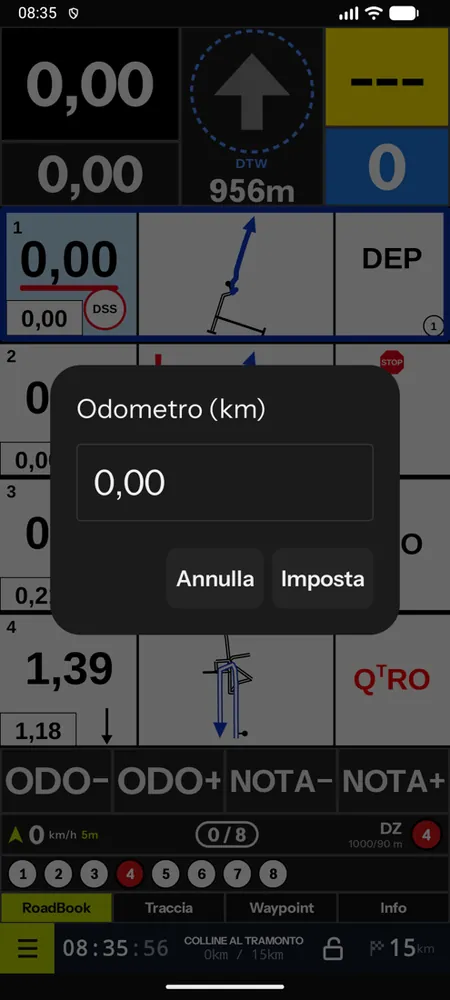
| Total | long press (ring) = keypad to type the value |
| A note in the RoadBook | long press = brings the odometer to that note; double tap = magnifier |
| WP arrow | long press (orange ring) = forced opening, if the regulations allow it; on iPhone, in races with codes, it opens the unlock code |
| ☰ MENU | everything else |
| 🔒 | locks touches; unlock by holding for 1 s |
The ODO and NOTE keys can be hidden from the menu or the settings: riders using a remote gain room for the RoadBook.
The RoadBook
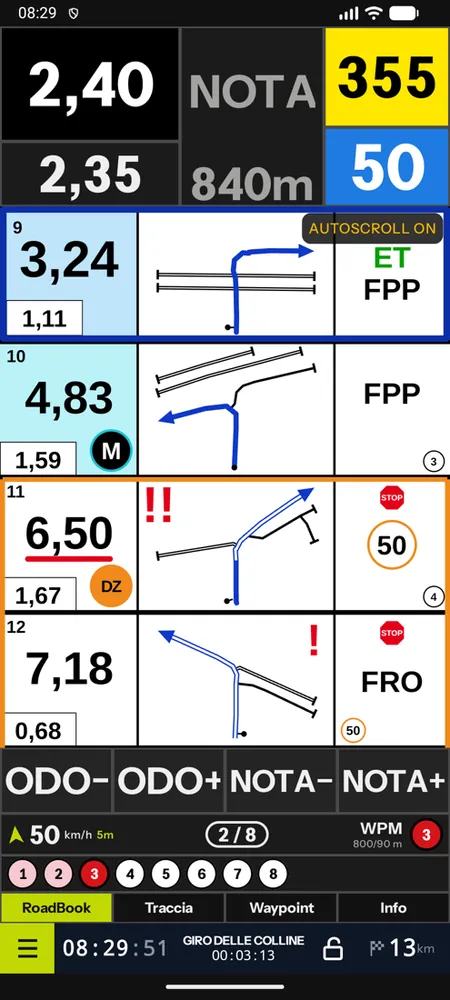
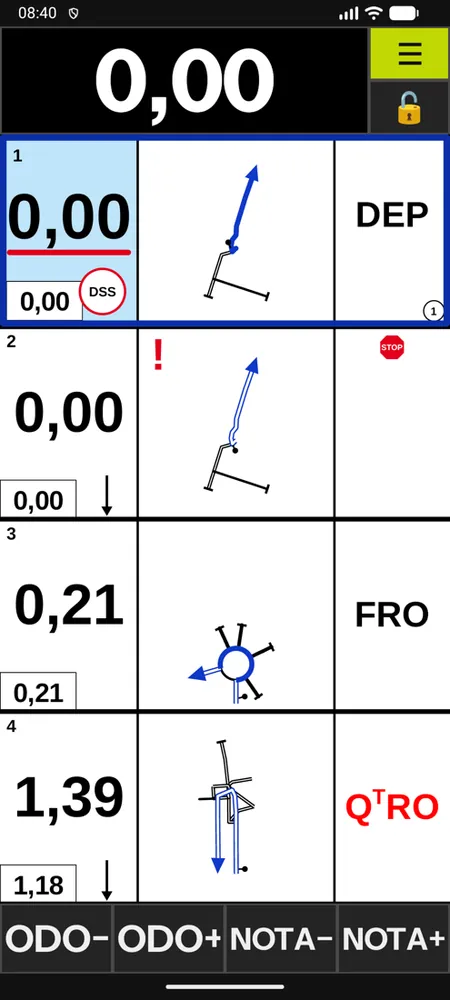
The notes are drawn as in the PDF Dakar: total km, partial, drawing with the arrow and annotation column, with the RoadBookAI icons, the yellow CAP, red dangers, MODIF and NEW NOTE. The active note sits at the top, highlighted, and stays active until 50 m after its km.
The notes are large, full width, so that they can be read at arm's length: on a phone at most 4 in portrait (you can go down to 3 or 2) and 3 in landscape; on a tablet up to 5 in portrait and 3 in landscape. The drawing and the text grow with the note.
- The note you are tackling has a thick frame around the whole row, with the large km, the partial below and the waypoint badge; the km is underlined in red once the odometer has passed it. In the night theme the frame is light blue.
- Notes already passed have a dimmed background and the km struck out.
- Automatic scrolling: the RoadBook follows your position. With Position check, if you leave the track it stops: it does not move on by itself while you are lost. When you turn it on or off (key, remote or menu) the word "autoscroll" appears for 3 seconds and then disappears; "MANUAL" tells you that you have moved the RoadBook by hand and that it will return to the active note by itself. In races under the FIM W2RC 2027 regulations automatic scrolling is always off and no label appears: the RoadBook is moved forward by hand, and you only read the reason if you try to turn it on. In training it is allowed by default, but the organiser or the tutor can turn it off.
- If you scroll with your finger, the RoadBook returns to the active note after a few seconds (where automatic scrolling is available).
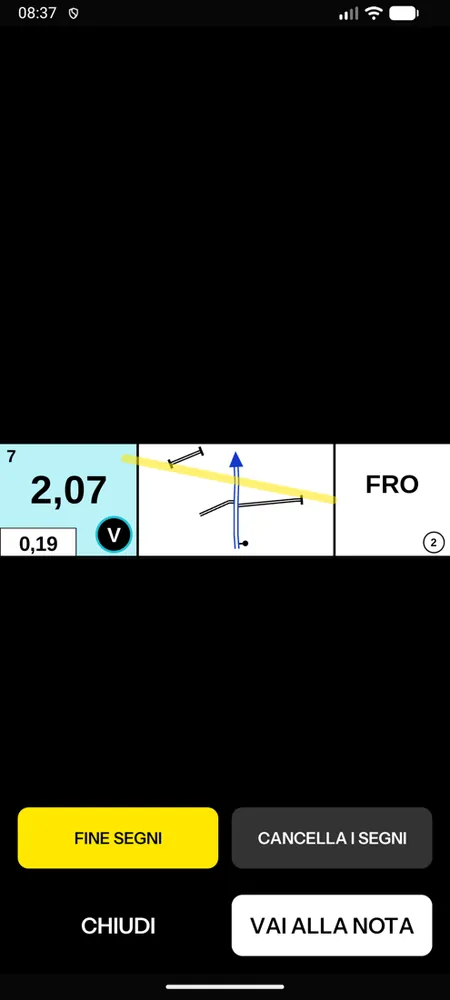
- Magnifier (double tap on the note): enlarges the note; from the magnifier Go to note opens navigation to that point in the phone's maps and the highlighter leaves personal marks on the note, until you clear them.
- Strike passed notes: strikes out the notes already passed; countdown: on the active note, the metres to go.
- Pinch to change the number of notes on the screen.
Panels and modes
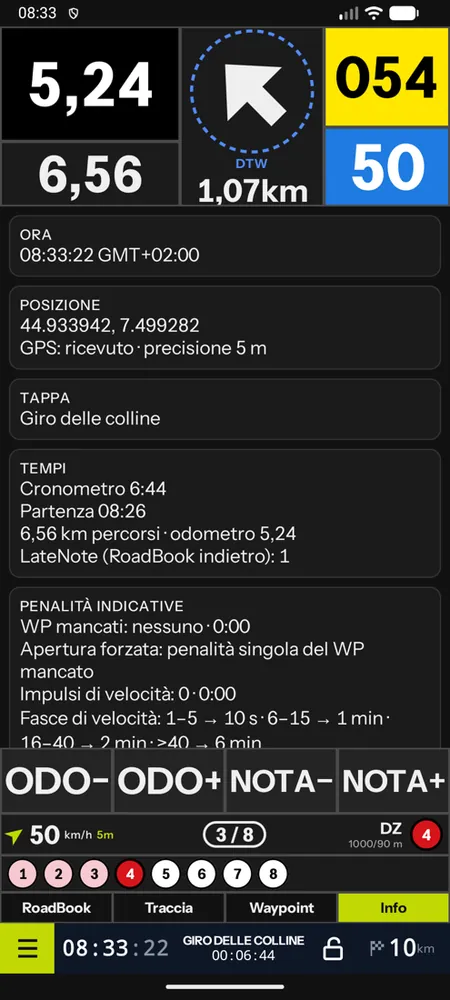
The tabs of the status block change the large panel: RoadBook, Track (the road ridden), Waypoints, Info (time, position, GPS, stage, times, indicative penalties, battery and storage) and, when there is an offline map, Map.
The cockpit modes:
- Standard: instruments and large panel;
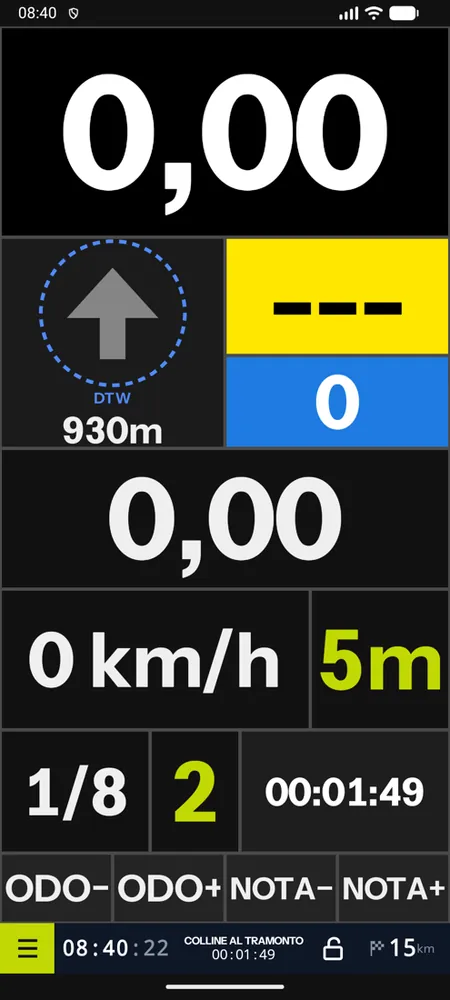
- Minimal: RoadBook and total only;
- Rally GPS: large instruments only, for riders navigating with a paper roadbook.
The themes: Rally POV (dark, default), Night (orange, so as not to dazzle) and High contrast for the sun.
Waypoints
The app knows the 16 waypoint types with the roadbook's radii:
- a waypoint opens when you enter its opening radius (some only after the previous one has been validated) and the arrow guides you towards the centre; WPs without guidance do not show the arrow;
- it is validated when you pass within the validation radius, even between two GPS points: sound, vibration and the message "WP 4 VALIDATED"; hidden WPs validate silently;
- if you reach a waypoint without having validated the previous one, the app asks whether to skip it;
- Waypoint list (from the menu) shows the status of all of them; WP+ skips the expected WP, WP− reopens the last one skipped;
- forced opening: when a WP cannot be found, the arrow still guides you, but that WP counts as missed. If the race regulations do not allow it, the app does not offer it and says so; under the FIM W2RC 2027 regulations its place is taken by race control's unlock code (see Racing with the app);
- the arrow always points to the expected waypoint: a WP further on that opens "in a chain" (a DZ or a WPE within the radius) does not take it over while the expected one is still ahead;
- with Adjust the odometer when a WP is validated the total is brought to the waypoint's distance, compensating for the metres ridden after the centre.
Speed, dangers and race STOP
- DZ–FZ speed zones: warning 300 m before, then an orange frame, the limit on the screen, a sound alarm below the limit and red flashing above it. If you are on the course of a zone without having taken the DZ, the limit applies all the same.
- Class limit and general limit outside the zones, when the organiser sets them (or you, in training).
- Dangers 2 and 3: warning with sound and voice at 200 m.
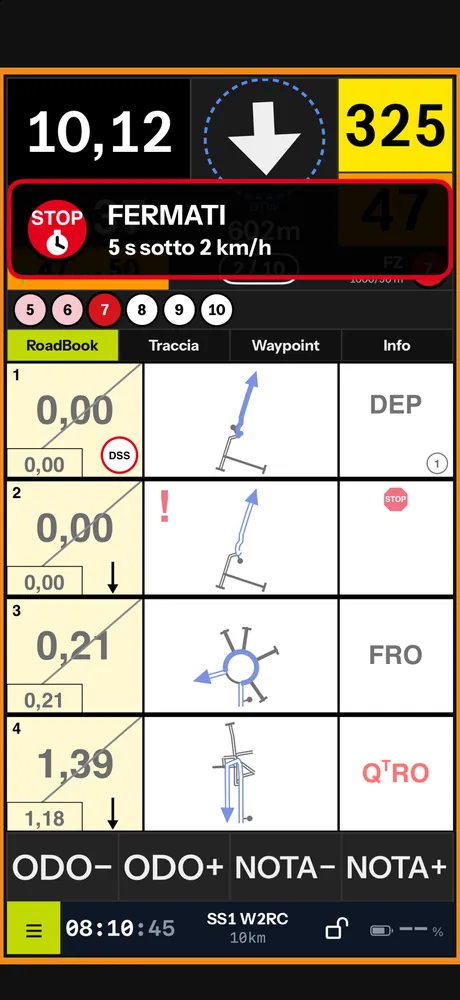
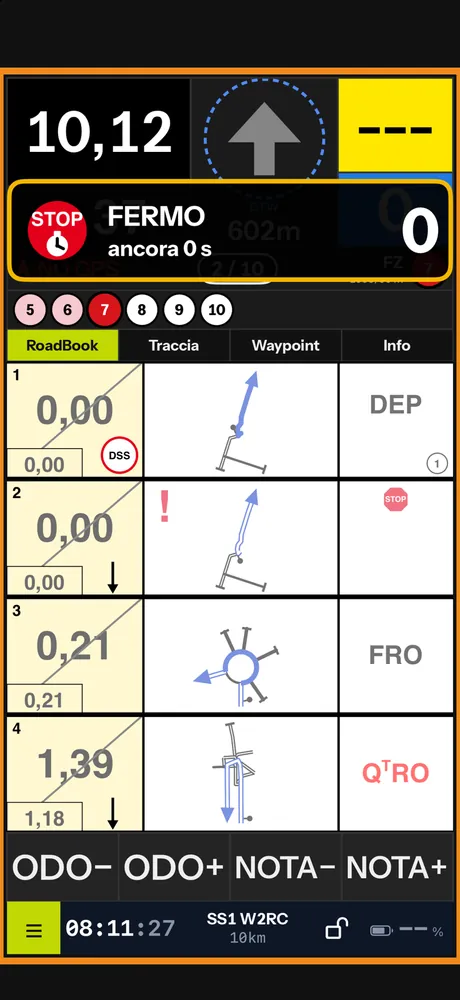
- Race STOP: warning at 200 m, then "STOP!": below 2 km/h inside the circle the countdown of the stop starts, and at the end "STOP RESPECTED". The ordinary STOP sign stays only in the drawing.
Neutralisations and liaisons
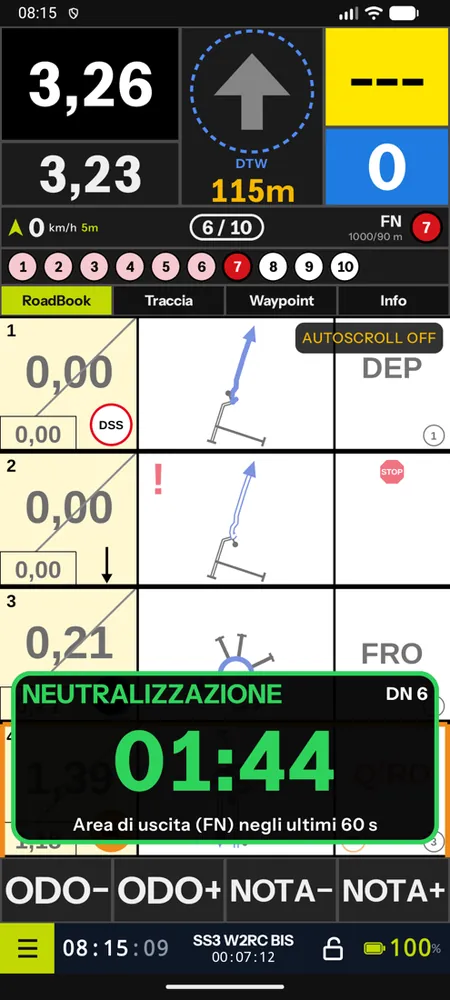
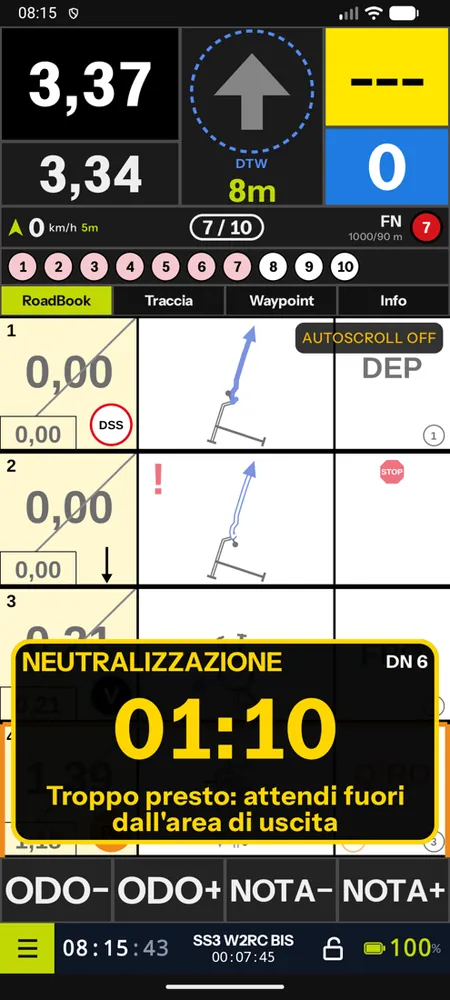
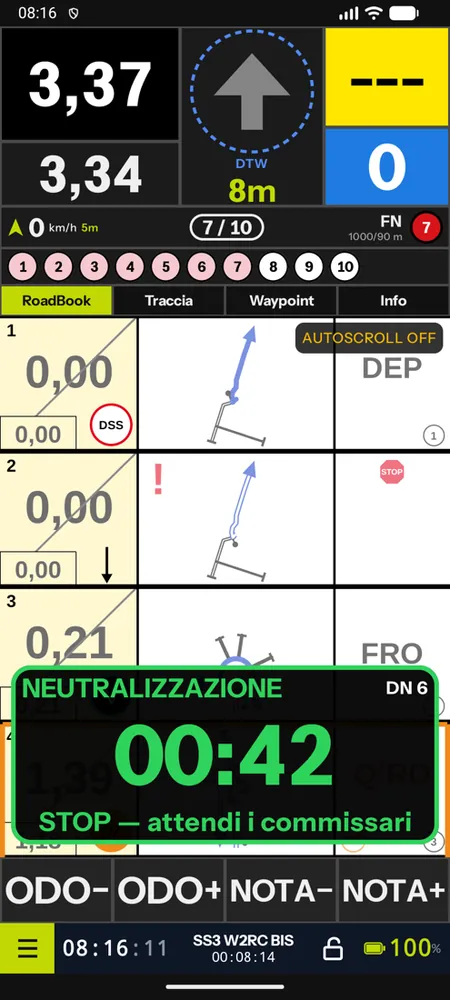
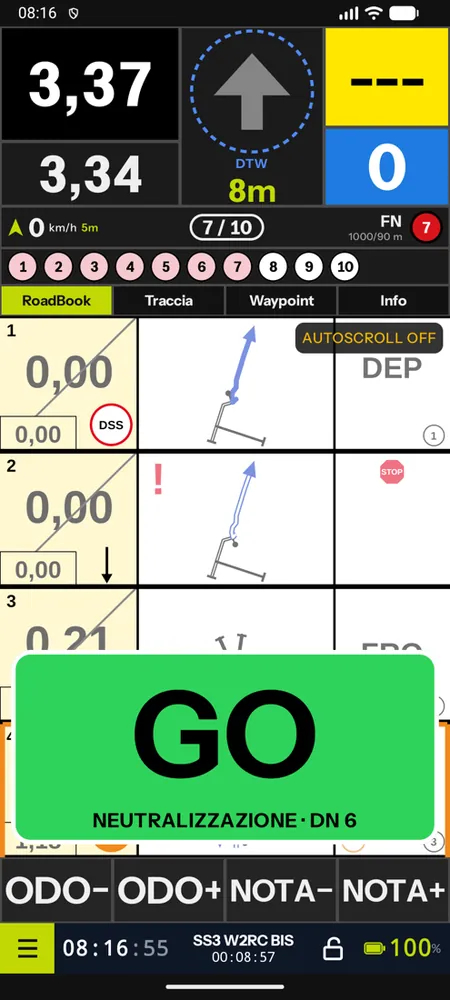
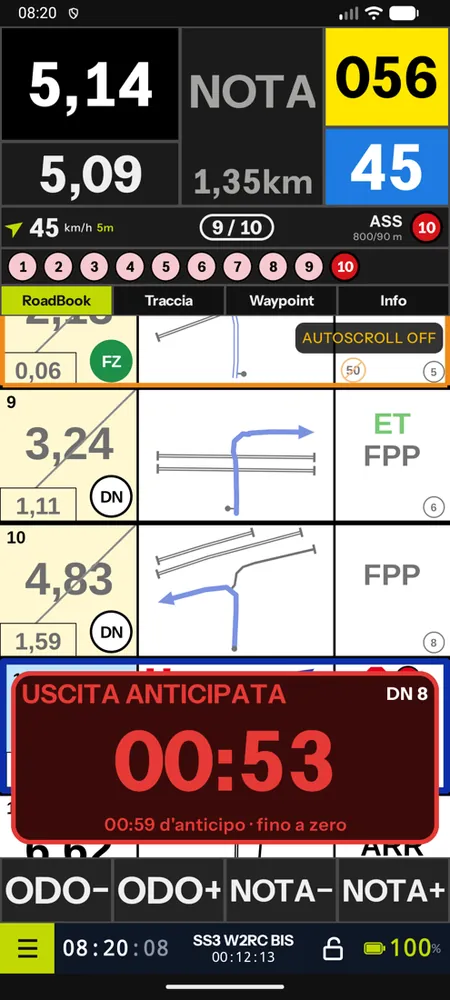
When the DN is validated a large green countdown starts with "NEUTRALISATION", always in the foreground. The exit area is the FN radius: you enter it only in the last minute (in yellow, "Too early: wait outside the exit area" if you arrive earlier), you stop in front of the marshals ("STOP — wait for the marshals") and at zero a large green GO appears, with sound and vibration. If you leave the area before zero the countdown turns red: "EARLY EXIT", with how early you were. Between DT and FT the liaison strip shows the elapsed time.
Reading a RoadBook in PDF
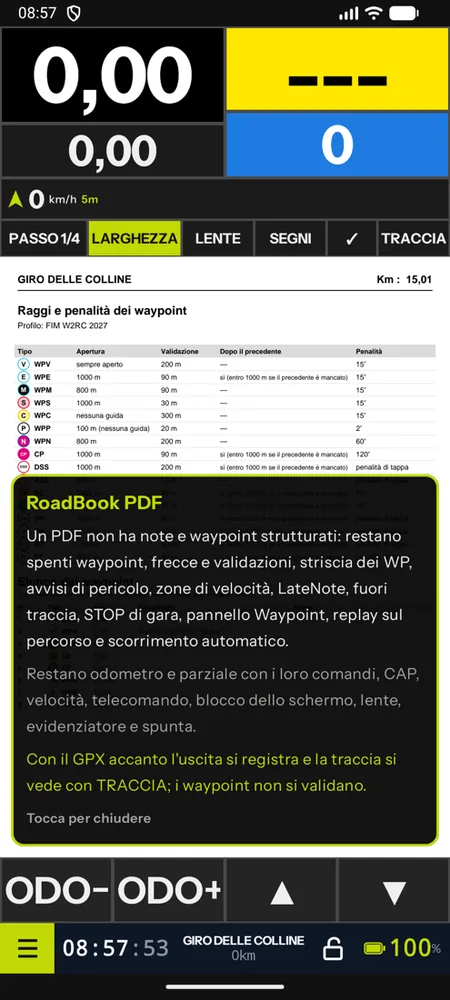
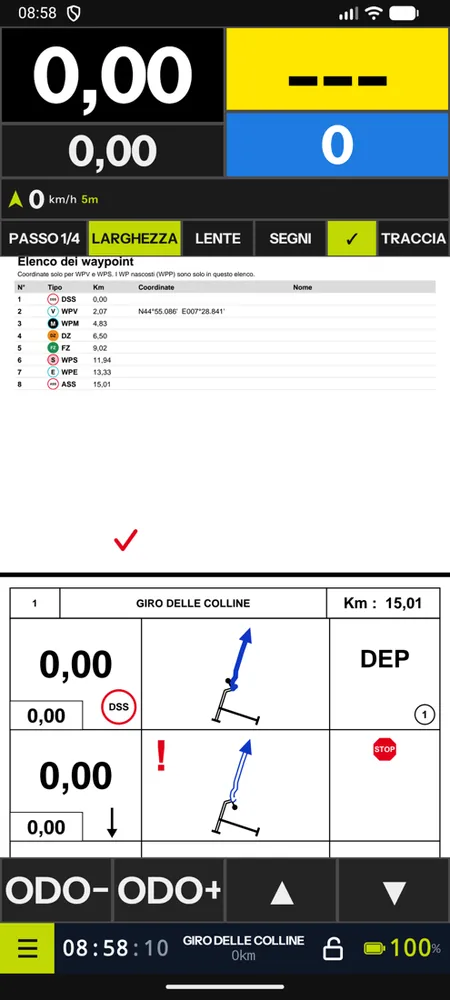
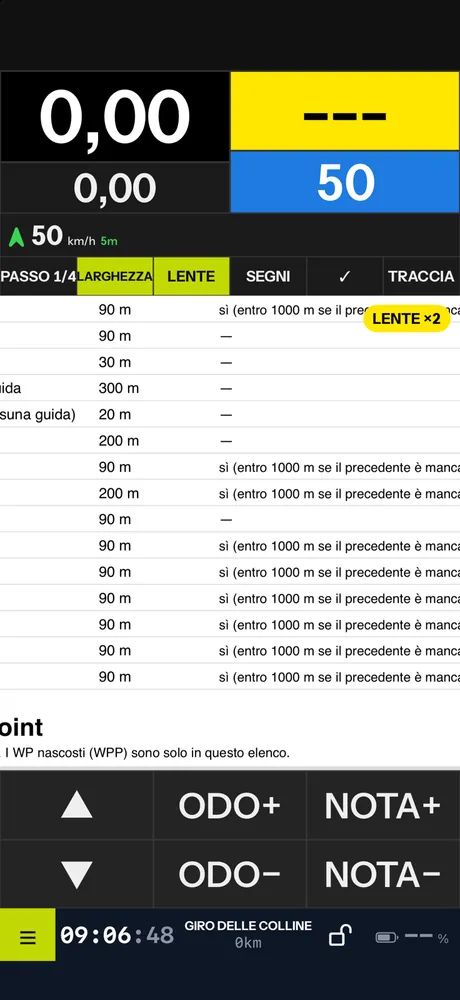
The app also opens a RoadBook in PDF, just like a RoadBookAI roadbook: from Files, AirDrop, sharing or a link. The cockpit becomes a PDF scroller with the instruments: total and partial with all their controls, CAP, speed, time and battery.
- Scrolling moves in steps of 1/8, 1/4, 1/3, 1/2 or 1 page (Settings › RoadBook), with fit to width and continuous pages; the app remembers where you had got to in each file. There is no automatic scrolling: the PDF does not say where the notes are.
- The remote (scroll forward and back), the screen lock, the magnifier, the highlighter and note striking all remain.
- The functions that need the roadbook's data switch off by themselves, with the reason written once: waypoints, arrows and validations, the WP strip, danger warnings, speed zones, race STOPs, LateNote, off course, the Waypoints panel, replay along the course.
- If you also open the GPX of the course, the app records the ride and shows the map (without validations).
The PDF is for free use and for training: in the stages of an event the organiser's package always applies. In the library PDFs have their own section, with Open the PDF RoadBook and GPX alongside… (any GPX track will do).
Screen, background and battery
During a ride the screen stays on and navigation continues with the screen off and with the app in the background: GPS, waypoint validation, alarms and recording do not stop. The track is saved every 15 seconds: even if the phone switches off, when it restarts the ride is in the History.
Remote
Bluetooth remotes are paired from the phone's Bluetooth settings and the app picks them up by itself (as a keyboard, media keys or volume keys). In Settings › Remote you reassign each action by pressing the key; the virtual remote puts large keys on the screen (BACK, FWD, ODO±, NOTE±) in the colours of the theme. With a remote connected you can still type in text fields (unlock code, total, partial). Details in the settings.
The menu
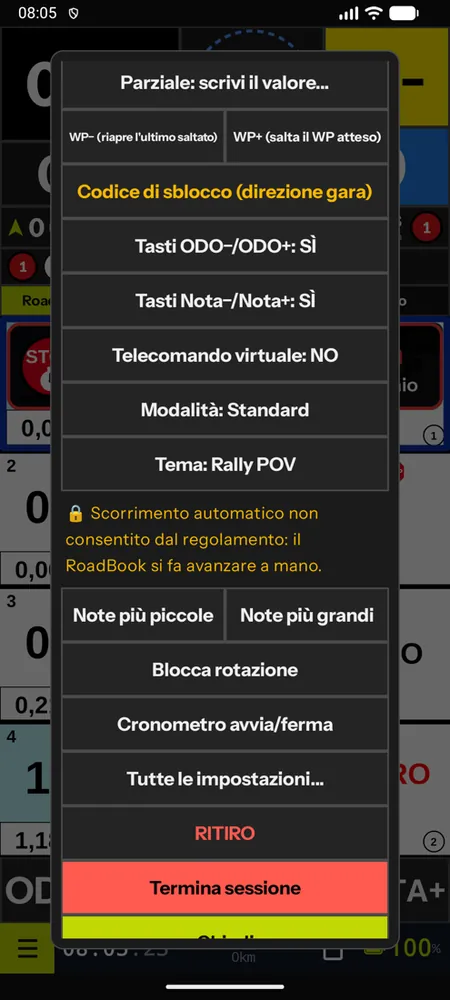
The cockpit menu (it scrolls, if it is taller than the screen) has: go to note, waypoint list, WP+ and WP−, forced opening or Unlock code (race direction), partial (type the value), ODO and NOTE keys, virtual remote, mode, theme, automatic scrolling, lock rotation, stopwatch, Recce on this RoadBook, ride data, All settings…, End session. In race stages also the live status and RETIRE.
At the end of the ride End session saves the track in the History and opens the summary: total time, DSS–ASS time ("not measured" if you did not reach the ASS), km, waypoints validated, forced, skipped and missed, speeding in zones, LateNote and theoretical penalties (in training they do not count). Even an interrupted ride (phone switched off, app closed by the system) stays in the History with its km and its replay.